

Authenticator 2FA
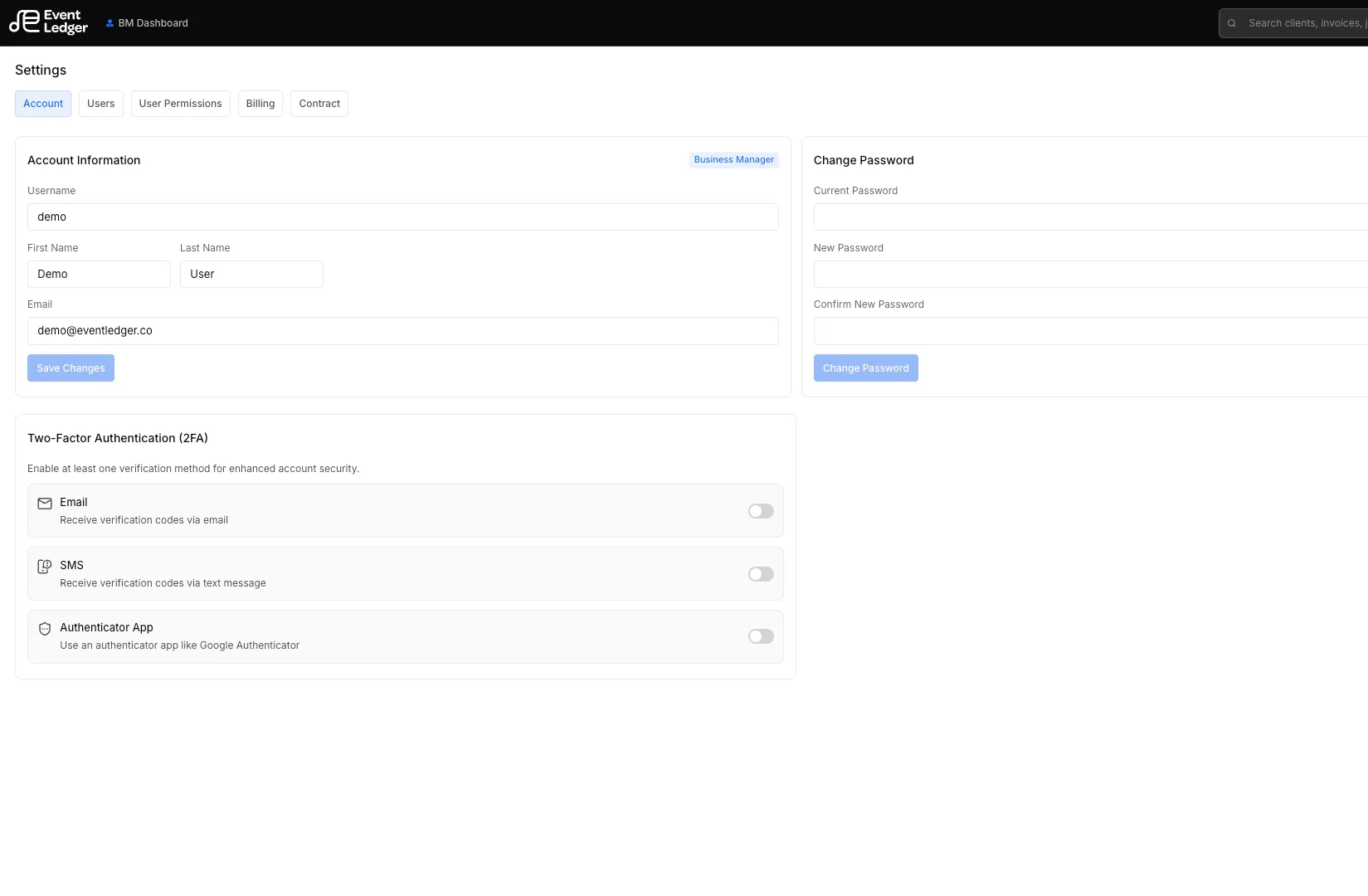
Turn on Authenticator App in Settings → Account. Confirm you have Google Authenticator (or a similar app), then scan the QR.
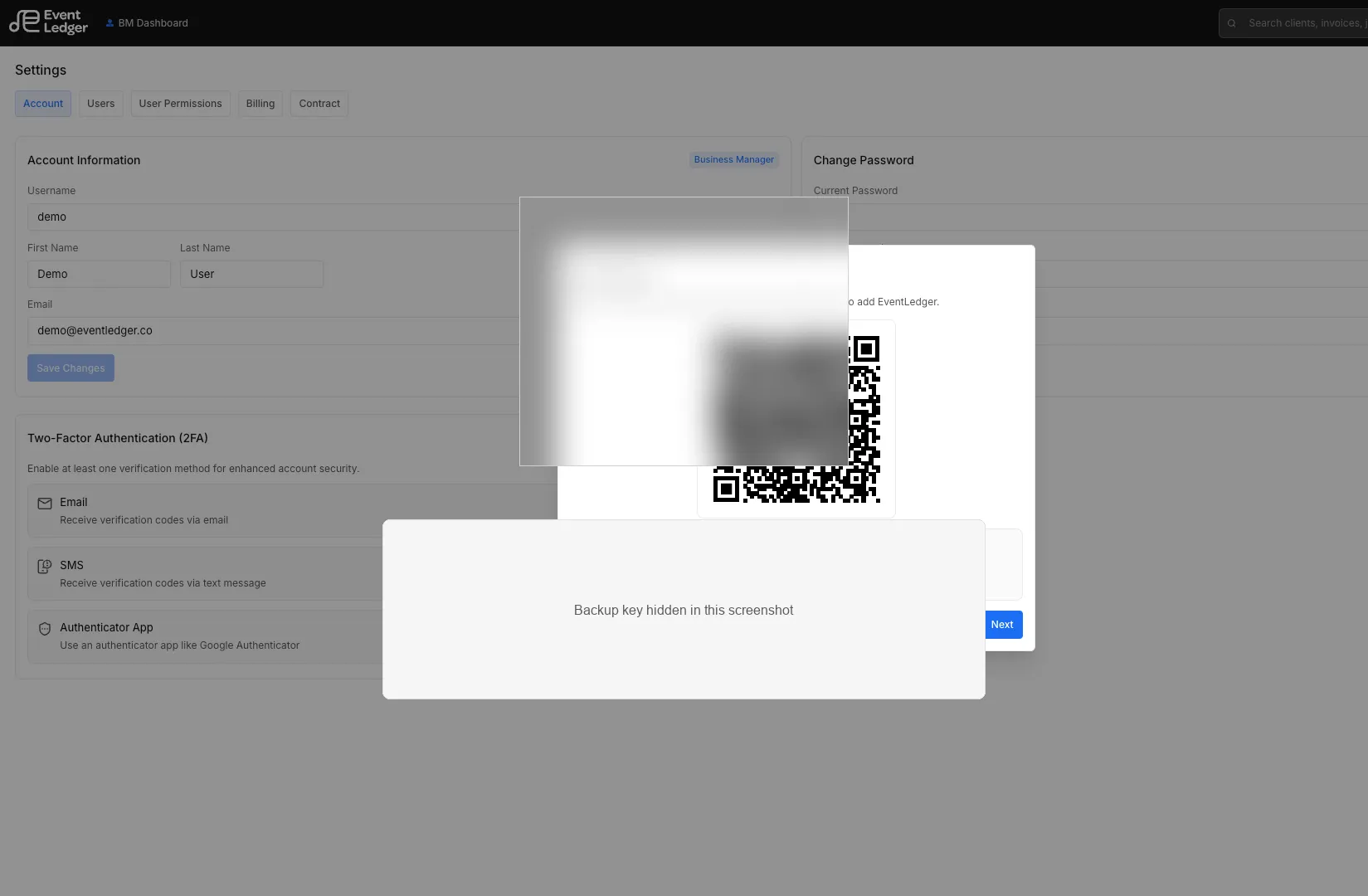
Add the account
Section titled “Add the account”- Open Google Authenticator on your phone.
- Scan the QR, or type the backup key if you cannot scan.
- Choose Next and enter the 6-digit code from the app.
- Done — the Authenticator switch stays on.
Do not finish setup until the code verifies. Closing the QR screen without a code leaves authenticator off.
Sign in with Authenticator
Section titled “Sign in with Authenticator”After your password, EventLedger shows the two-factor picker if 2FA is on for your account.
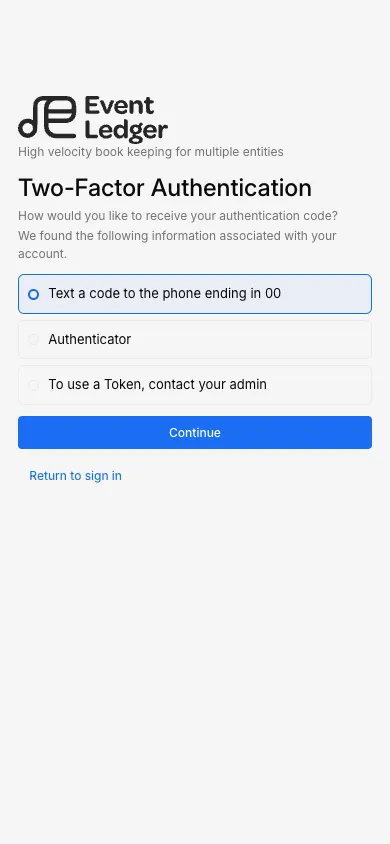
- Choose Authenticator.
- Scan the QR if this device is not in the app yet.
- Enter the 6-digit code, then Continue.
SMS stays available. Token still requires an admin.